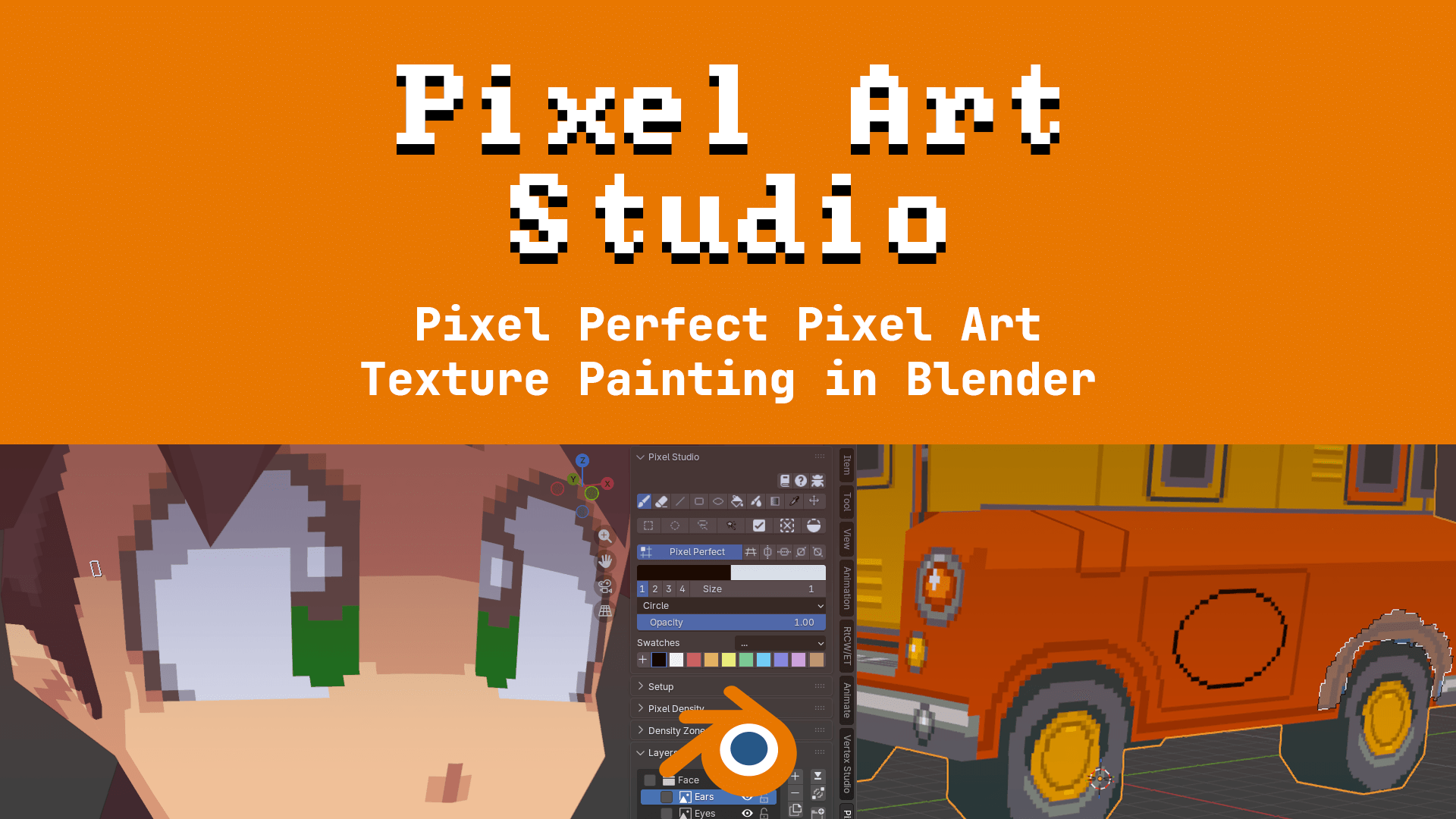
Pixel Art Studio is a Blender add-on (plugin) for pixel perfect pixel art texture painting. It supports drawing and painting pixel art inside Blender, in the 3D Viewport on top of the model (in Object and Edit modes) and in 2D in the Image Editor. It has tools for drawing and painting (including colors, palettes, layers, pressure sensitivity, bucket fill, gradients), selecting and moving pixels, and quickly setting up the model and the viewport for pixel art. A model that already has UVs and a texture is painted right away, nothing to set up: click a tool and paint. For a model with no texture, Quick Setup shows the pixel sizes live on the model, then makes the texture at the size it needs. Don't worry about UVs anymore: one click unwraps the whole model for pixel art (texel density, pixel sizes and no stretched pixels), so you can close Blender's UV Editor and use just the 3D Viewport. Stack faces on the same pixels or join as a single UV island, without ever moving or scaling a UV island by hand. The plugin also helps with setting up and managing multiple texture densities per mesh, allowing for uniform pixel sizes across the whole mesh or per face pixel size variation.
And this is not a filter or composer to "PIXELATE" the scene or the model, this is true pixel art drawing and texturing!
Not only it has tools with pixel line handling algorithms, it solves one of the biggest pain points when doing Pixel Art with Blender: pixel size stays consistent regardless of zoom level. One texel stays always one texel, which means always one pixel at the size of the texel defined by you in the whole mesh or per face.
Links
Summary of Features
-
Open your model and paint: a model with UVs and a texture needs no setup, click a tool and paint. Models made of several objects on one texture paint as one.
-
Quick Setup: see the pixel size on the model before choosing it, then make the texture, the material and the UVs in one click.
Try Pixel Densitieschanges the pixel size of a model you already painted, keeping the painting. -
Pixel perfect drawing and painting pixel art tools: brush / pencil, eraser, line, rectangle, ellipse, bucket fill (by pixels, by selected faces, by color, with bleed), blur, scramble, gradient (with dithering options), opacity, eyedropper, text tool, path, bézier curve, filled polygons, shading, pixel spray, pressure sensitivity.
- All tools have pixel perfect line handling algorithms.
- Custom brushes.
- Fill and dither patterns on every drawing tool (dithers, checker, lines, diagonals, grid, or your own pattern cut from a selection).
- Noise and Color Jitter, for hand placed looking texture (grime, grass, rust, wood grain) that never shifts when you paint over it again.
- Shading tool: lighten and darken what is already painted, with hue shifting or stepping along your own palette ramp.
-
Pixel selections: rectangle, ellipse, lasso, magic wand, invert selection.
- The selection tools work on the 2D and 3D viewports, and you can drag selected pixels across the faces of the model.
- Selections can be made by topology, which selects and fills half-pixels (sub texels) in diagonals.
- Transform (scale, rotate, skew) in 2D and on the model, with pixel art rotation algorithms that never invent new colors.
-
2D and 3D viewport pixel grid overlay.
-
Mirror and symmetry drawing on the 2D and 3D viewports.
-
Tiled Mode in the Image Editor, to paint seamless textures and see them repeat as you draw.
-
Color swatches and color palettes (and a palette library with 500 predefined palettes).
-
Layers and layer management with locking, grouping, merging, visibility toggling and blending modes similar to painting programs.
- Non-destructible adjustments (brightness and contrast, color curves and HSL), stackable, per layer.
- Clipping layers and transparency masks like Photoshop and Krita.
- Export layers, groups or the whole texture as PNG and paste or import images as layers.
- Texture Dilation: the colors of the art grown into the transparent texels around it, so no seam shows at the edges of the UV islands.
-
One-click pixel size and pixel density setup with predefined presets, as well texel density detection for existing meshes (you can have chunky pixels and fine, detailed pixels).
-
One-click setup buttons to setup the viewport for pixel art (grid size and snapping adjusted to the pixel size) and to UV unwrap the model for instant pixel art painting.
-
UV tools made for pixel art:
Pixel Art UnwrapandQuick Unwrap Model(the whole model, from any mode, in one click), with the same pixel size on every face, tilted or flat.Stack UVs: paint one face and see it on all of them (barrel staves, cylinder sides, crate planks).Keep UVs Together (Join): curved parts stay one clean island. For organic models, join their faces and tweak theUnwrap Optionsif needed.- Several meshes on the same texture are unwrapped together, in one packed layout with no overlaps.
-
Density Zones (optional): assign and manage texel density values per face, allowing for uniform pixel size across the whole mesh or different pixel sizes per face.
- Different density zones automatically resizes Blender's grid on the fly, when you hover different faces of the model, in the 3D viewport.
-
Game engine integration with Godot, Unity and Unreal Engine: paint in Blender, save, and the model shows up in the engine as pixel art (unlit, crisp pixels, no blur), with no export dialogs.
- Auto export to GLB, glTF or FBX into any folder on every save, for any other engine or tool.
- Every glTF export you make yourself comes out as unlit pixel art too.
-
Two shortcut modes: alongside Blender's own shortcuts (default), or Pixel Art Studio's only while a tool is active (like Aseprite). Customizable shortcuts for EVERYTHING.
Blender version required?
- Recommended (officially supported): Blender 5.2
- Also compatible with Blender 3.6 through Blender 5.x (the extension version needs Blender 4.2 or newer).
Does it require external dependencies?
No, it's made 100% with Python using only Blender's APIs. It is a native Blender plugin.
Pixel Art Studio features in details
Every drawing, selection and layer tool works in the 3D Viewport and in the Image Editor, in perspective and orthographic views, so you can move the camera around freely while painting.
-
Drawing and painting tools
-
All tools are directly inspired by Aseprite, so you are going to feel right at home.
-
All tools have pixel perfect line handling algorithms (with the brush and line tool, it removes the doubled L corners, with the ellipse, it creates pixel perfect circles and ellipses).
-
Paint straight on the model: lines and shapes stay straight across UV seams and around edges, and big brushes wrap over seams and corners without leaking into other UV islands or into empty texture space.
-
Open your model and paint: a model that already has UVs and a texture needs no setup, the first stroke turns the texture into layers (only the color texture, normal and roughness maps are left alone).
-
Models made of many objects on one texture (a rig, a vehicle in parts): every part takes the brush where you point at it, whichever object is selected, and a stroke stays on the part it started on.
-
Brush (Shift+Alt+B): freehand painting as a
Circle,Squareor custom brush, free size selection as well presets for1 2 3 4, Alt+[ Alt+] to increase/decrease the size on the viewport. -
Eraser (Shift+Alt+E): erases to transparent, with opacity control (it keeps its own size, shape and opacity, apart from the brush's).
-
Adjustable opacity, applied stroke-relative: like Aseprite, dragging over the same texels twice inside one stroke applies the opacity once.
-
Line (Shift+Alt+L): pixel perfect stair steps. Shift snaps to straight lines, 45 degrees and 2:1 isometric lines.
-
Lines from the last dab: Ctrl+Shift+click draws a straight line from your last dab with the brush or the eraser, and Ctrl+Shift+Alt+click snaps it to the same perfect angles (a chain of clicks draws a polygon).
-
Rectangle (Shift+Alt+U) and Ellipse (Shift+Alt+O): outlined (stamped with the current brush), filled, or outlined in the primary color and filled with the secondary, Shift constrains to a square or a circle (the preview is the final pixels).
-
Path and Polygon (Shift+Alt+C): bezier tool with smoothed and hard corners, allowing to draw pixel art curves and polygons, including filled polygons (click and drag to draw a smooth corner, click to draw a hard corner, Enter to finish the path).
-
Text: crisp pixel font text, never antialiased, with bold, italic and outline (nine pixel fonts bundled, plus the fonts installed on your system).
-
Bucket (Shift+Alt+F), two modes:
Pixel: flood fill with an adjustable tolerance. WhenContiguousis off it is a global/selection color replace. On the model the fill follows the surface, so an outline drawn on the model holds the fill even across many UV islands.Face: fills whole faces out to their own edges (the selected faces, or every face if nothing is selected).
-
Bleed: covers the half pixels along diagonal UV edges, and pads UV islands against mipmap bleeding (brush, eraser, line, bucket and gradient).
-
Blur (Shift+Alt+H): box blur, pixel aware (it never makes sub-pixels).
Scramble: shuffles the texels under the brush, the area gets noisy and no new color is ever made.
-
Shading: lightens or darkens what is already painted, the way a pixel artist would.
Simple Shading,Hue Shifting(highlights warm up towards yellow, shadows cool down towards blue) andColor Replace(steps along your own palette ramp).- Ctrl swaps lighten and darken for one stroke.
-
Pixel Spray: a pixel art spray can, it stays on the pixel grid and wraps around the model's seams.
-
Gradient (Shift+Alt+D): two color gradient,
LinearorRadial, with ordered dithering (Bayer 2x2,4x4,8x8) orSmooth(fills the selection, the whole layer, or everything you see on the model). -
Eyedropper (Shift+Alt+I) and Alt+click.
- Alt+Shift+X: samples the color under the pointer with no click and no tool armed (hold it and the color follows the pointer).
- In the 3D Viewport it also samples reference images, other objects and the background, and a texture that isn't a canvas yet (it never makes one).
- The new and the old color are shown right at the cursor while you sample.
-
Move (Shift+Alt+V): drags a layer or a selection around (on the model it's carried across the faces).
Auto Select Layer: auto selects the layer at click position.
-
Tablet pressure: pressure toggles for
SizeandOpacity. -
Live brush preview: the exact dab is drawn under the cursor before you click, on the model and in the Image Editor, with the armed tool's icon right below it.
-
-
Brushes, patterns and colors
-
Custom brushes from anything you draw, with Aseprite's three alignments, usable on the model, saved in the file, in the preferences (every file) or as assets.
-
Fill and dither patterns on every drawing tool:
Dither 12%,Dither 25%,Checker 50%,Dither 75%, lines, diagonals and grid, or your own pattern cut from a selection.- Patterns stay locked to the pixel grid: strokes, fills and shapes meet without seams, on the flat texture and across the model's UV seams.
Transparent: lays a pattern over art that is already there.- Inspired by GraphicsGale: the tool decides which texels get paint, the pattern which of the two colors each one takes.
-
Noise and Color Jitter: hand placed looking texture (grime, grass, rust, wood grain) that never shifts when you paint over the same area again.
-
Primary and secondary color: Alt+X to alternate between 2 colors, and
Next Swatchto walk the swatches of your palette. -
Blender's own color picker inside the panel, and the hex you pick is exactly the hex painted (no color management surprises).
-
Custom palettes by adding swatches (add colors clicking the
+and remove with Ctrl+click) or by importing palette images (for example, palettes from Lospec). -
Lospec palette library: 500 palettes bundled with the add-on, offline, previewed live on your model as you click them.
-
-
Pixel selection and transform
-
Marquee (Shift+Alt+M), Ellipse Select, Lasso (Shift+Alt+K) and Magic Wand (Shift+Alt+W) (while a selection is active, tools affect only the selected pixels).
- Shift adds to selection, Alt removes from selection (with any of the drag tools).
-
Selecting in 3D is per texel: select what you see on the mesh, and it's the same selection in the texture.
-
Drag and move selections: directly in the texture in the Image Editor and on the model in 3D, across the faces like a sticker, even across separate UV islands. Ctrl while dragging duplicates the selection, Shift holds it to one axis.
-
Transform (Shift+Alt+T): scale, rotate, skew and anchor with handles like Aseprite's, in 2D and on the model, always landing on whole texels.
- Three rotation algorithms (
Clean Rotation,Fast RotationandRotSprite), and none of them invents colors, so your palette stays clean.
- Three rotation algorithms (
-
Select by topology: grabs the half pixels along diagonal UV edges that every other tool leaves behind.
-
Copy, cut and paste across layers (Ctrl+Shift+C / Ctrl+Shift+X / Ctrl+Shift+V), and
Paste as New Layer. -
Flip the selection horizontally and vertically.
-
The selection clears itself when you put the tools away (optional).
-
-
Layers and Groups
- Layers like in painting programs: add, remove, duplicate, move up and down, merge down and merge selected, lock, visibility, opacity.
- Groups: group and ungroup layers, nested groups, group opacity and visibility (affects all layers inside the group).
- 19 blend modes (Aseprite's set), on layers and on groups, with Photoshop style group blending.
- Clipping layers and layer masks like Photoshop and Krita: shade inside a shape, hide without erasing, change your mind later.
- Non-destructive adjustments:
Brightness/Contrast,Hue/SaturationandColor Curve, stackable, on a layer or on a whole group. - Import and export: export a layer or a group as a cropped PNG, or the whole texture (
Export Texture, whatImage > Save Aswrites), import images as layers, and paste images from any program's clipboard as a new layer. Texture Dilation: grows the colors of the art into the transparent texels around it, so UV seams don't bleed the background in (in a game engine, for example). On a layer, a group or the whole texture, with a live preview.- Photoshop and Krita muscle memory in
Pixel Art Studio Only: Ctrl+Shift+N, Ctrl+J, Ctrl+E, Ctrl+G.
-
Pixel size and pixel density (texel density)
-
One-click pixel size setup: this solves one of the biggest pain points of doing pixel art in Blender, it makes pixels uniform across the model or per face (see
Density Zonesbelow). -
Quick Setup: see the pixel size on the model before you choose it. The bigSetupbutton draws every preset (or your own number) live on the model, with the texture size it needs and a preview of the UVs, thenCreate Texturemakes the texture, the material and the UVs in one click. -
Try Pixel Densities: change the pixel size of a model you already painted, previewed with your own texture, andApply New Densitykeeps the painting (scaled to the new pixel size, or carried onto new UVs). One Ctrl+Z takes it back. -
Density presets:
Low Density, big pixels (16px/m)(chunky pixels),Medium Density (50px/m)(default),High Density, small pixels (110px/m),Very High Density, small pixels (220px/m)andCustom. -
Your own presets, saved once and ready in every project.
-
Apply Texel Density: puts the UVs of the selected objects on the pixel size, island by island, keeping your own UV layout (no slanted pixels, islands stay where you put them). -
Detect Texel Density: detects the pixel size of the model.- Auto pixel size detection for pre-existing textured models
-
A red button tells you when the model is off the pixel size you asked for, and a painted texture is always asked about before its pixel size changes (
Keep my paintingorStart with a blank texture). -
Grow Texture to Fit: texture too small? The canvas grows to fit the UVs, layers included, as one undo step.
-
-
Viewport and scene setup
Setup Viewport: one click button to setup Blender's grid and snapping so that one grid square is exactly one texel at the current density / current pixel size (plus flat texture shading and colors shown 1:1).Setup Pixel Art Canvas: the wizard to create the texture, its layers and a crisp unlit material, and it tells you which texture size your model really needs.Remove Unused Textures: removes the textures a setup made that nothing uses any more (left behind while trying densities).Snap Selection to Pixel Grid: snaps objects or vertices on the pixel grid at any zoom, something Blender's own snapping can't do.- Several textures on one mesh:
Paint Onlists them to select the one to paint on, or let a click on a face switch to its texture. - Pixel Art Studio workspace:
Image Editoron the left and the3D Viewporton the right.
-
UV tools
-
Pixel Art Unwrap: UV unwrap made for pixel art, the same pixel size on every face, tilted or flat, packed on whole pixels. -
Quick Unwrap Model: unwraps the whole model from any mode and puts your mode and selection back, in one undo step. The eye beside it previews the new UVs on the model at any pixel size, before anything changes. -
Several meshes on one texture (a character in several parts, for example) are unwrapped as one packed layout with no overlaps.
-
Stack UVs: paint it once, see it everywhere (barrel staves, cylinder sides, wheel spokes), and every unwrap keeps them stacked. -
Keep UVs Together (Join): curved parts stay one clean island, unfolded flat or relaxed so the stretch is spread thin. Imported models (glTF) whose faces only touch are offered a weld first. For organic models, join their faces and tweak theUnwrap Optionsif needed.Keep Shape: keeps the UV proportions you drew through every unwrap.
-
Color coded groups of stacked and joined faces, lit under the mouse in the 3D Viewport and in the UV Editor.
-
Flip UV islands, snap UVs to pixels, keep pinned UVs, and margins measured in pixels.
-
Lists of the stacked and joined groups, with a trash button to remove them all at once.
-
-
Density Zones (optional, advanced, multiple pixel sizes per model):
- Assign and manage texel density values per face, for uniform pixel size across the whole mesh or different pixel sizes per face (a character's head drawn at twice the density of the legs, for example, which means smaller and more pixels for the head).
Detect Density Zonesmeasures the model island by island and clusters them into zones automatically (PS1 style models included).- Stretched pixels survive a new unwrap: the pixel aspect of each zone is measured and kept.
- Build zones from selected faces, with custom names and densities.
Grid Follows the Face: while you paint in the 3D Viewport, Blender's grid is resized and re-pointed on the fly at the density of the face under the cursor, to keep one grid square at the size of one pixel for that specific face.
-
Symmetry, Tiled Mode and pixel grid
- Mirror and symmetry drawing: horizontal, vertical, 45 and -45 degrees (they can be combined for multi-axis symmetry). On the model it works like a Mirror modifier, pixel exact.
- Tiled Mode in the Image Editor: paint seamless textures and see them repeat around the canvas as you draw.
- Pixel grid overlay in the Image Editor and in 3D Viewport overlayed on top of the model, so stretched or half pixels show before you paint (color and thickness configurable).
-
Game engines
- Paint in Blender, press Ctrl+S and see it in Godot, Unity or Unreal Engine: no export dialogs, no manual reimport.
- Pixel art arrives as pixel art: unlit, nearest filtered, no mipmap blur, hard edged transparency, in every engine. It fixes the classic "black or blurry model" import problem.
Fix Models in Project: fixes the models that were already in the project before the integration.- Generic Exporter: GLB, glTF or FBX into any folder on every save, for any other engine or tool.
- Any glTF export you make yourself comes out as unlit pixel art too.
- Safe in your project: nothing deleted, your own materials and import settings left alone.
-
Extras and Blender integration
- No external dependencies, it's made 100% in Python with Blender's APIs.
- Undo history (you can undo and redo everything alongside Blender).
- Tools popup: press D over either editor for a panel with the tools and their settings, right at the pointer, even with no tool armed.
- Painting on the model works in Object and in Edit mode, and you can alternate between Pixel Art Studio's tools and Blender's own tools on the fly. Hide faces in Edit Mode to protect them while you paint next to them.
- Paint on the model and on the flat texture at the same time, side by side, with the same colors and tools in both.
- The canvas is a normal Blender image: it's packed into the .blend, and it renders and exports like any other texture. A texture that came from a file is written back in its own format (PNG, JPEG, TGA, 16 bit PNG and more).
- Keep using Aseprite (or any editor) on the same texture file: Blender asks how to bring the changes into your layers instead of overwriting them (with
Watch for external file changeson). - Two shortcut modes:
Alongside Blender(default) keeps Blender's own shortcuts working while you paint,Pixel Art Studio Onlygives you Aseprite style single keys (asked the first time you click a tool). Every shortcut is customizable, and one key (;) jumps between Pixel Art Studio and Blender: see Shortcuts.