Open existing or old models and paint right away without doing any kind of setup, for new models, there's a new Quick Setup mode to preview pixel sizes, UVs and textures, Try Pixel Densities without losing your painting, UV previews, shortcuts that live alongside Blender's actions, Tools Popup anywhere, painting models made of many objects, Texture Dilation, and much more!
Pixel Art Studio is used by more than 2000 people now, and the most common frustration was the setup, specially pixel sizes (texel densities): which density to choose, which button to click first, what happens with the texture when you change your mind, etc? So v1.4.0 is called "FRUSTRATION FREE" and it is all about getting started:
- A model that already has UVs and a texture: no setup at all. Click a tool and paint.
- A model without a texture (or a new model): click the big Setup button, experiment and preview pixel sizes (texel densities) live on the model, then Create Texture.
- Changed your mind about the pixel size? Try Pixel Densities shows the other pixel sizes on the model.
There's also a new shortcut mode where Blender's shortcuts keep working while a Pixel Art Studio tool is active, and it's the new default, you don't have to activate and de-active Pixel Art Studio tools all the time anymore.
Check the list of new features and improvements (full changelog at the bottom).
Links
Open your model and paint
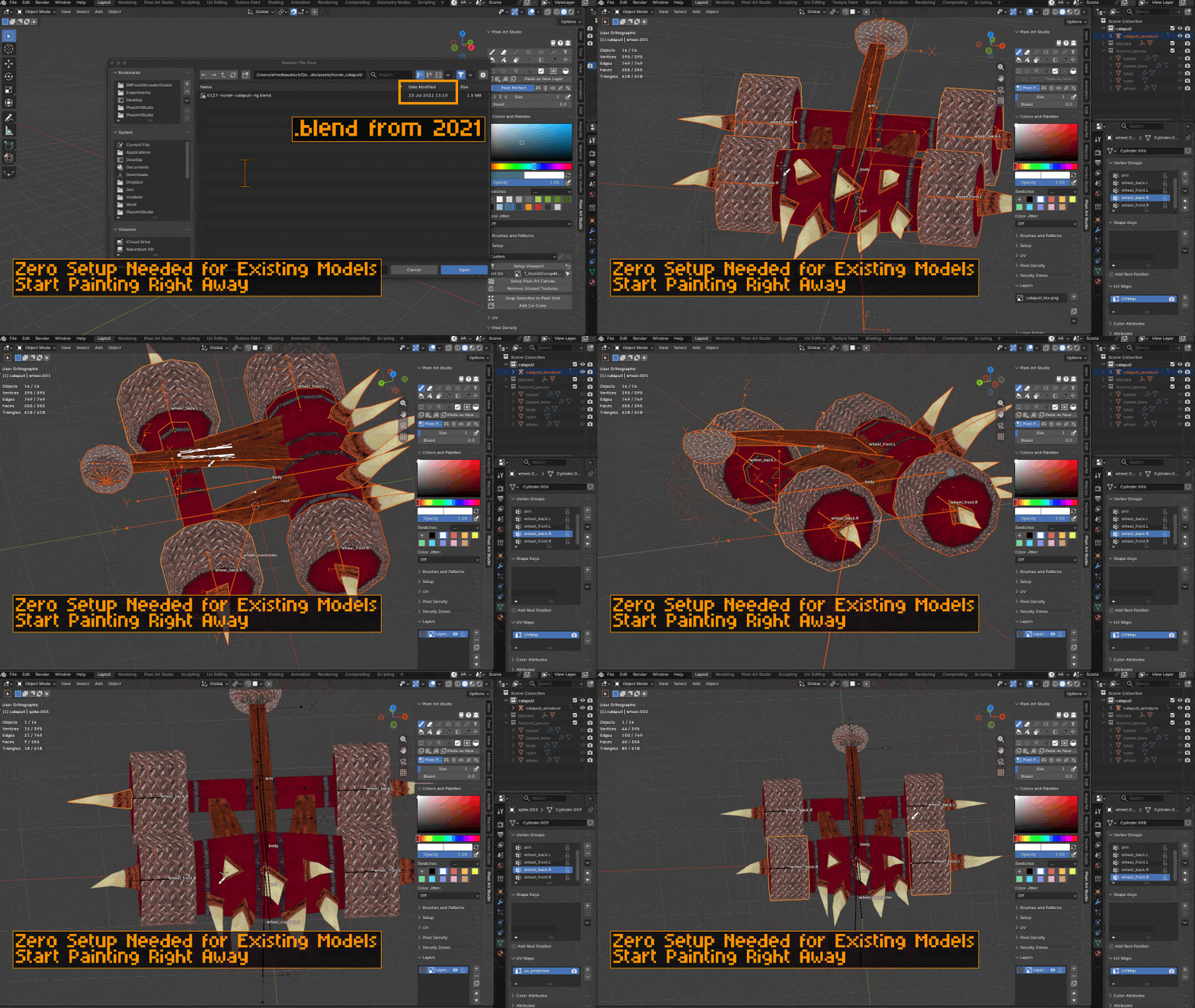
Make Canvas is gone. If your model already has UVs and a texture, just click a tool and paint. The first stroke turns the texture into a Pixel Art Studio canvas (with layers), using your UVs and your textures.
It's not only the brush: any tool, Add Layer, Select All, a paste, Import PNG, etc, they all automatically make the canvas on the first use, so no setup steps required from you.
Things that only read the texture (eyedropper, hovering, unwrapping, exporting, saving) never make a canvas, so your texture stays untouched until you actually paint it.
Quick Setup: preview and experiment pixel sizes (texel densities)
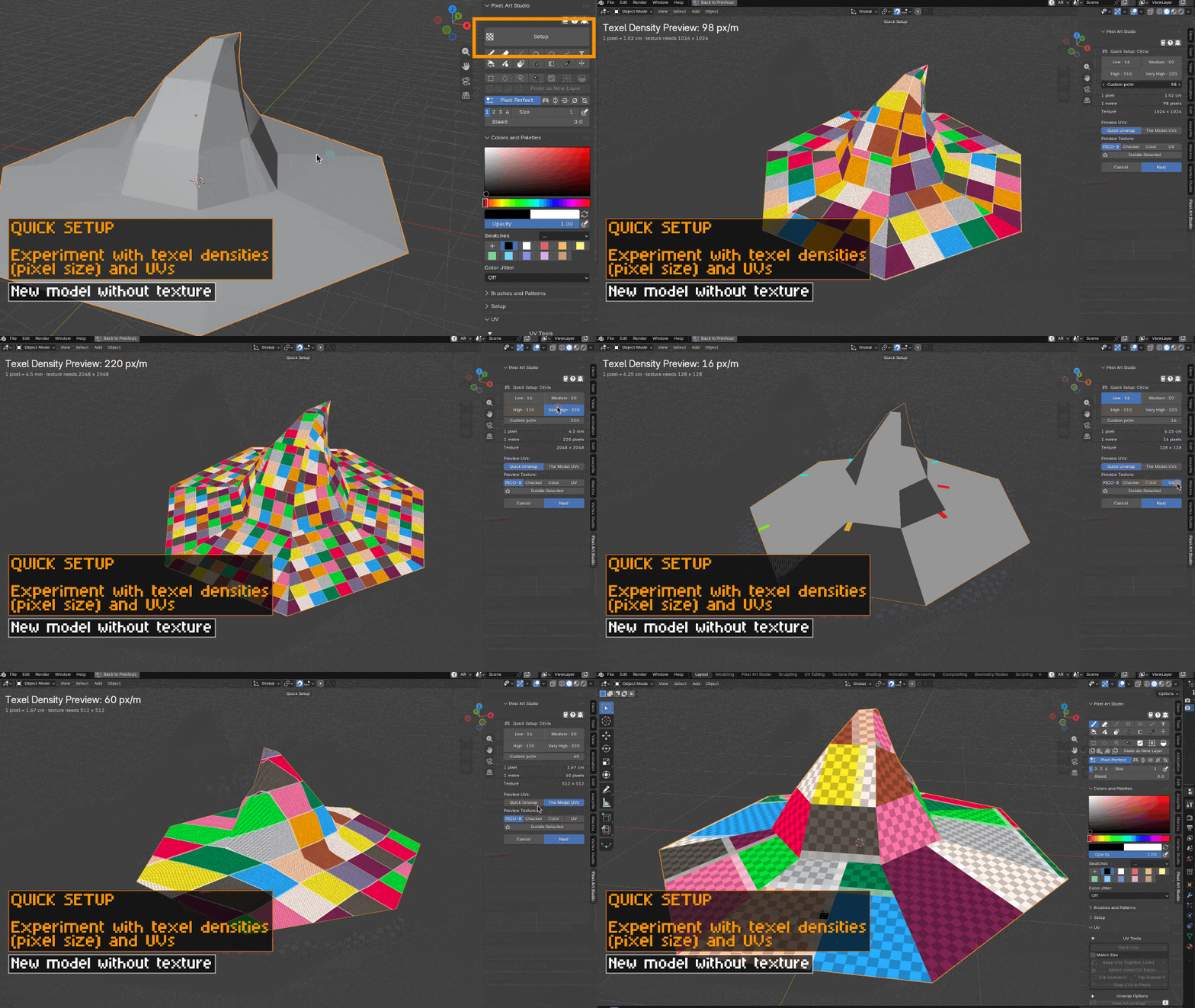
For a model without a texture, there's a new big Setup button at the top of the panel. It opens Quick Setup:
- A focused 3D viewport with model framed, with the pixel grid texture drawn live on the model, at the density you are trying.
- Click any preset (Low, Medium, High, Very High and your own presets) or type any number (Custom px/m). CTRL+Mouse Wheel goes through the presets, CTRL+Z goes back to the density tried before.
- The sidebar says what 1 pixel is in real world units, how many pixels 1 meter has, and the texture size the model needs at that density.
- Preview with Pixel Art Studio's signature grid (with the PICO-8 palette), a checker, a color grid or a UV grid.
- Isolate Selected (or NUMPAD /) shows only the selected objects.
- Navigation keeps working normally (orbit, pan, zoom).
- Click Next, then Create Texture: the texture at the size needed, the material, the UVs at that pixel size, and Setup Viewport. Everything in one undo step.
And you can click another object while Quick Setup is open to try with the other object, at the same density, so you can compare the parts of a model.
Try Pixel Densities
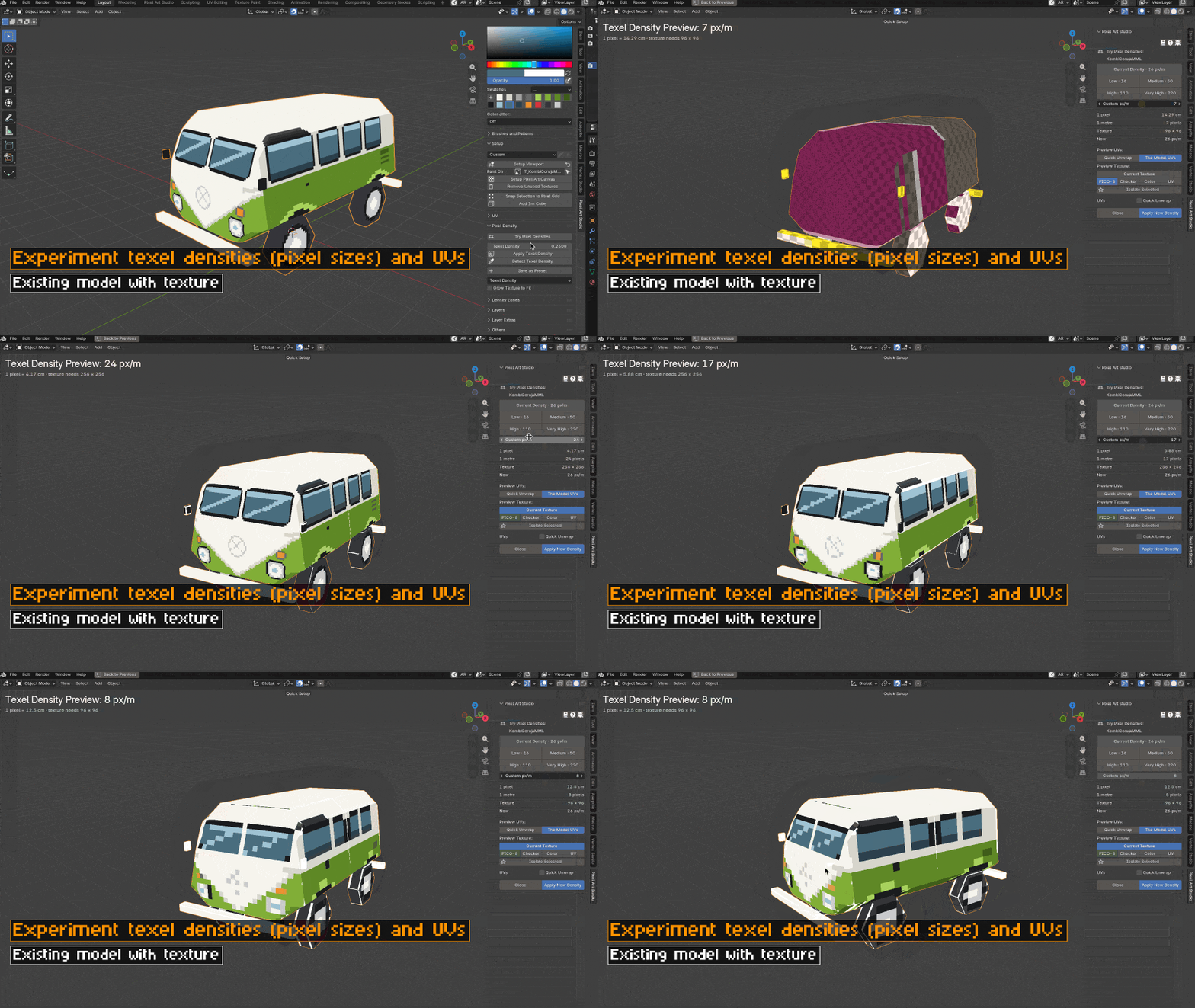
For a model that has a texture, Try Pixel Densities (in the Pixel Density panel) opens the same mode:
- Current Density goes back to the density the model has now.
- Current Texture previews the model's own texture at the new pixel size, and the way it's going to be scaled.
- Apply New Density applies it. If the texture is painted, it asks first: Keep my painting (every layer is scaled to the new pixel size, the painting stays where it is on the model) or Start with a blank texture. When the new density scales the painting unevenly, it suggests the nearest densities that scale exactly.
- CTRL+Z to undo works.
When the model's pixel size is different from the scene's density, the Try Pixel Densities button turns red, so you know there's something to look at.
It works on models made of many objects too, like a rig: click another part while it's open and that part is tried, at the same density.
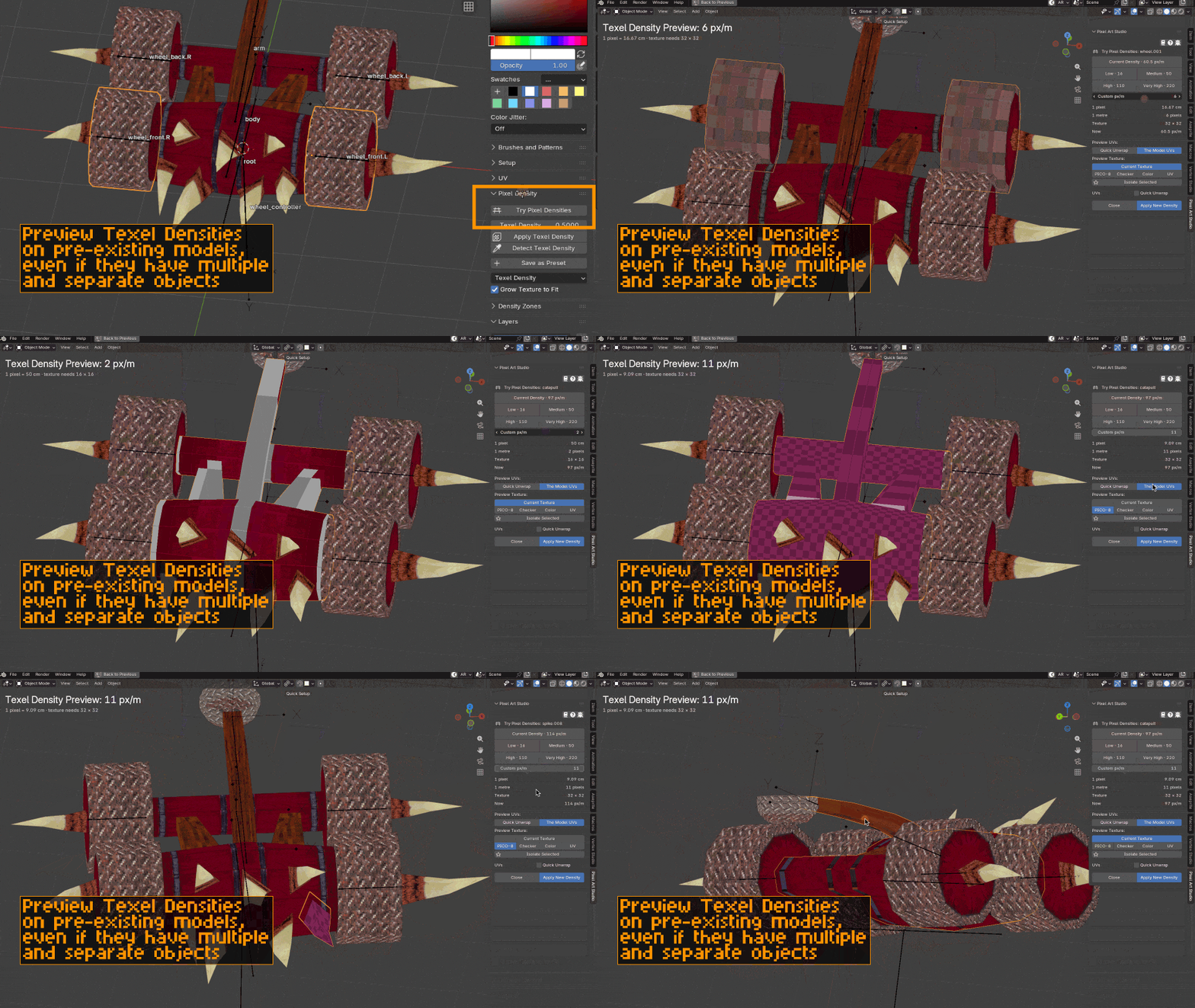
Preview UVs before changing anything
Preview UVs in Quick Setup and Try Pixel Densities has 2 options:
- Quick Unwrap: the UVs Quick Unwrap Model would make, with the real layout (joined faces in one piece, stacked faces on one spot, each density zone at its own pixel size).
- The Model UVs: the grid through the UVs the model already has (so you can see stretched pixels right away).
With the Quick Unwrap box ticked, Create Texture and Apply New Density give the model the new UVs, and with Keep my painting the painting is carried onto the new UVs. The texture size follows the layout too.
There's also a new eye button beside Quick Unwrap Model (in the UV panel), which opens this preview directly: try UV unwrapping and pixel sizes without changing your model and texture.
Shortcuts alongside Blender
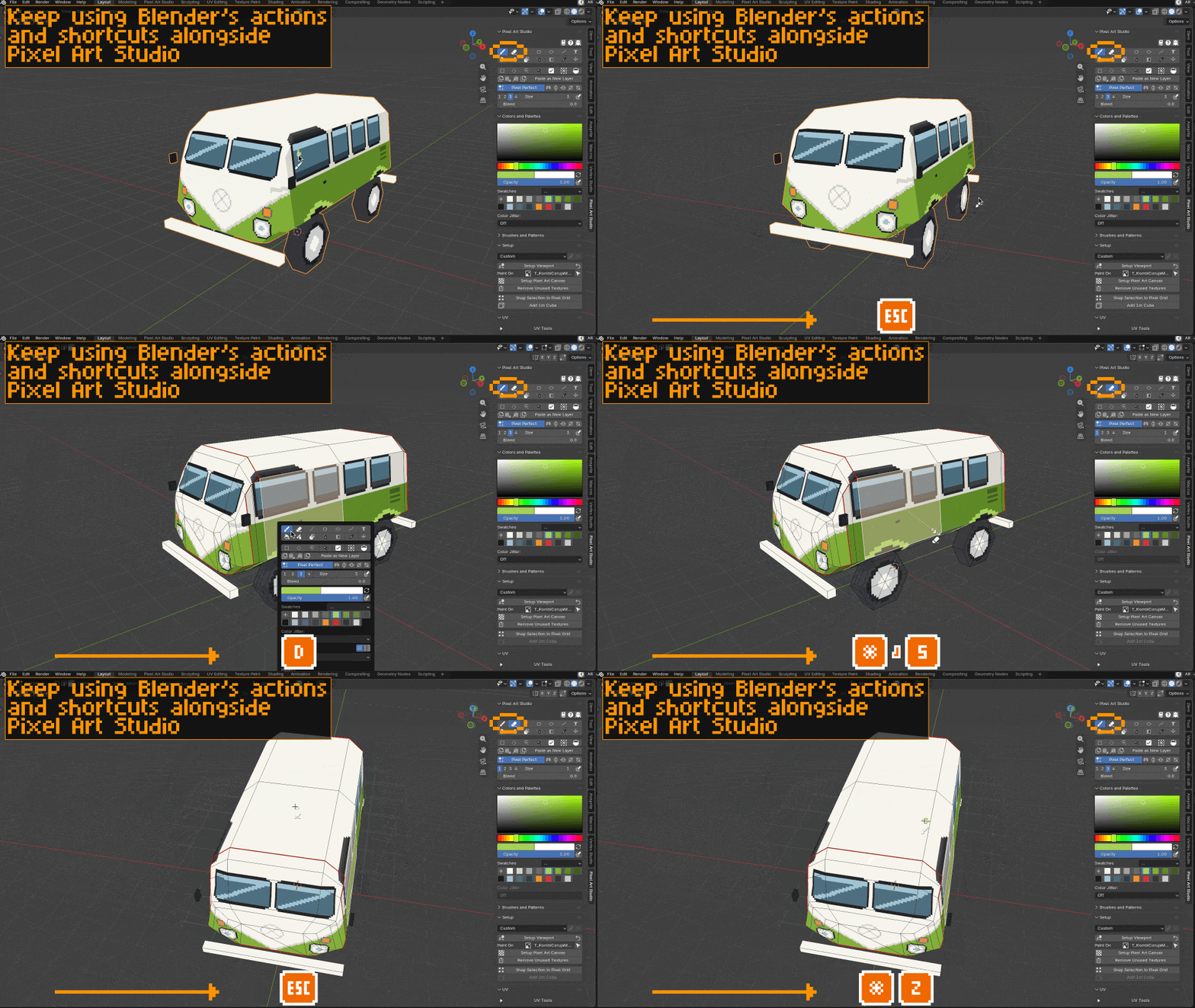
Pixel Art Studio's shortcuts now have 2 modes:
- Alongside Blender (the new default): Blender's shortcuts (G, S, R, TAB, etc) keep working while a Pixel Art Studio tool is active. In this mode, Pixel Art Studio uses only key combinations that do not conflict with Blender: the tools are SHIFT+ALT and their letter and the CTRL shortcuts get a SHIFT (CTRL+SHIFT+A select all). And if you bind one of them to a key Blender uses, Blender wins. The main shortcuts:
- D: Tools Popup (also with no tool active)
- SHIFT+ALT+B: Brush
- SHIFT+ALT+E: Eraser
- ALT+X: swap the primary and secondary colors
- Hold ALT and click: Eyedropper
- Pixel Art Studio Only: the classic mode, exactly like before. While a tool is active, the keys are Pixel Art Studio's, like in Aseprite. The main shortcuts:
- F: Tools Popup
- B: Brush
- E: Eraser
- X: swap the primary and secondary colors
- Hold ALT and click: Eyedropper
The first time you activate a tool, Pixel Art Studio asks which mode you want. You can change it any time in the add-on preferences (Shortcuts tab), which also shows when a shortcut of yours clashes with a Blender one. If you had customized your shortcuts, don't worry: they are all kept, and the question already suggests Pixel Art Studio Only.
All the shortcuts of both modes.
Tools Popup without a tool active
With Alongside Blender, press D over the 3D Viewport or the Image Editor, even with no Pixel Art Studio tool active, and the Tools Popup opens at the mouse position: tools, brush size, colors and brushes and patterns.
Paint models made of many objects
A model made of many objects sharing one texture (like a rig, where every part is its own object) can now be painted everywhere, not only the active object. Every visible part that uses the texture takes the brush where you point, with the brush preview, the grid and the selections on every part. Blender's selection, active object and mode are not changed.
Strokes, shapes and selections stay on the part you started them, and a part in front of another hides it, as you would expect. With an Armature active, the part under the mouse decides which texture is painted, and the Layers panel follows it.
Texture Dilation
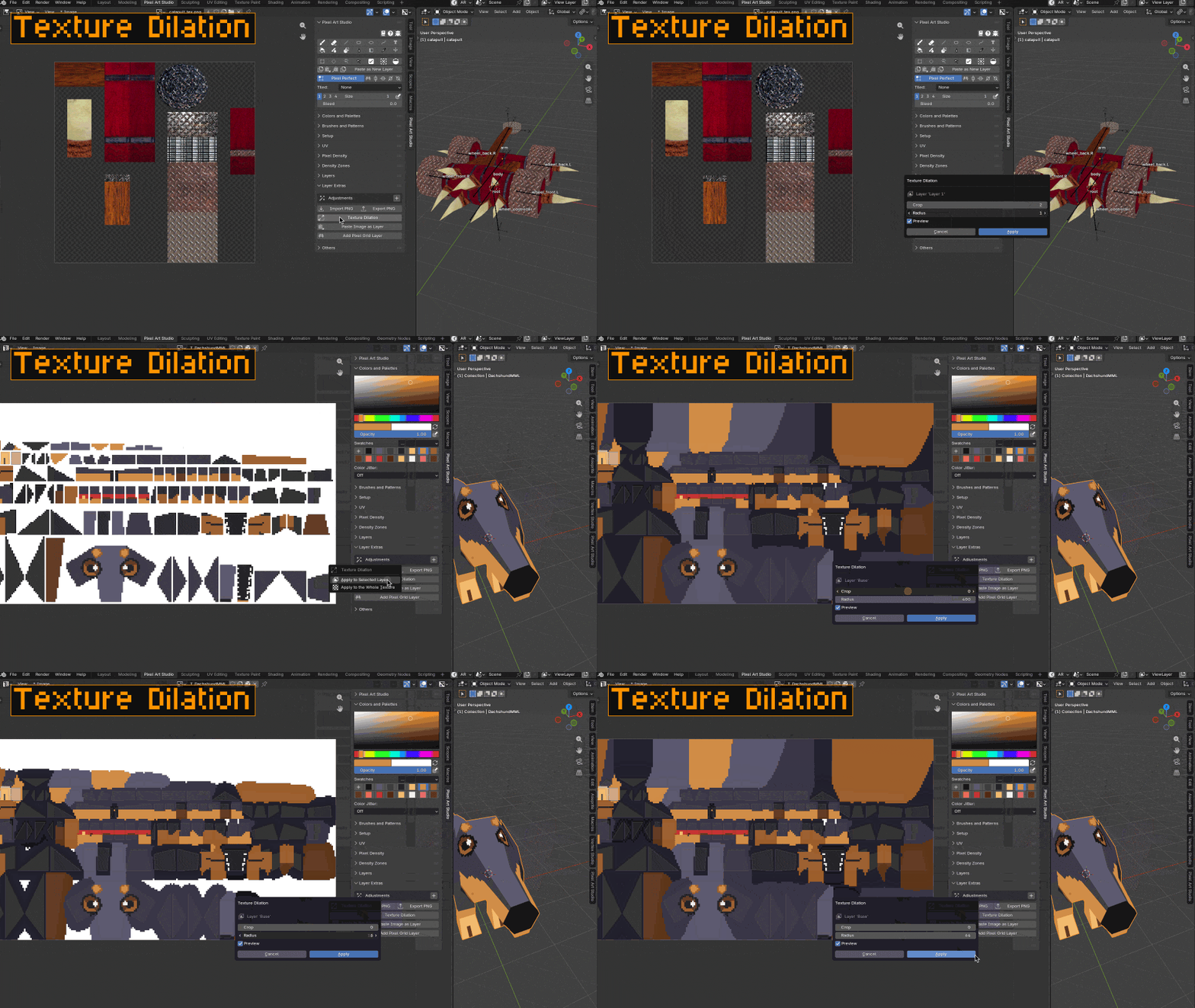
New Texture Dilation in the Layer Extras panel (inspired by Photopea's Texture Dilation, made for pixel art): every transparent texel close to the painting takes the color of the nearest painted texel, with hard edges, so no seam shows at the edges of the UV islands (when the texture is filtered, mipmapped or seen from far away).
- Apply it to the selected layer, the selected group or the whole texture. For a group or the whole texture, the fill goes into a new layer (Texture Dilated), so everything stays editable and you can hide it to turn it off.
- Radius: how far the colors reach.
- Crop: throws away the painted texels on the edges first, and fills them again from further in (good for edges that came out blurry or dark).
- A live preview while the dialog is open, and only the selected texels are filled when there's a selection.
Export the whole texture as PNG
Export PNG (in Layer Extras) now asks what to export: Export Layer (or Export Group), cropped to what it holds like before, or Export Texture, the whole texture at its full size, all visible layers composited (the same as Blender's Image > Save As).
Keep UVs Together on imported models
Models imported often have their faces split: the faces only touch each other, their corners are not joined in the mesh. Keep UVs Together (Join) now notices that and asks: weld the corners (and the faces become one group, one UV island) or keep them as is. The shading is kept the same either way.
The Stacked Faces and Joined Faces lists also have a new trash button to remove all groups at once (it asks first), and removing a group now selects the next one in the list.
Important undo fix
In v1.3.1, undoing past Make Canvas made the texture transparent, and saving the .blend after that wrote the transparent texture over the PNG file. This is fixed: undoing past the canvas gives back the texture and its file exactly as they were. Other undo problems fixed in this release are in the changelog below.
Other quality of life features and improvements
- When the last Pixel Art Studio tool is put away, the selection is cleared, so the marching ants don't stay on the texture (one CTRL+Z brings the selection back). It can be turned off in the preferences: Clear selection when Pixel Art Studio is de-activated.
- Activating a tool opens the sidebar on the Pixel Art Studio tab, if it was hidden. Switching to another sidebar tab puts the tool away (Blender 4.1 and newer).
- Remove Unused Textures (in the Setup panel) removes the textures made by Setup that nothing uses anymore (ex: the ones left behind while experimenting with densities).
- Apply Texel Density and Setup Viewport ask before rescaling a painted texture, with the same Keep my painting / Start with a blank texture question.
- The UV panel has the unwrap buttons above the lists now, so the lists growing don't push them down.
- Every tooltip shows the shortcut of the mode you are using.
Links
v1.4.0 Changelog
- New feature: Open a model that has UVs and a texture and paint right away. Make Canvas was removed: the first action on a texture (any tool, layer buttons, shortcuts, pastes) turns that texture into a canvas, as its own undo step.
- Only the color texture is made a canvas (the one connected to Base Color or Emission, through node groups and Mix nodes), normal and roughness maps are left alone, and only that texture is set to Closest.
- The eyedropper, hovering, unwrapping, exporting and saving never make a canvas.
- New Paint On row in the Setup panel: the texture being painted, and a dropdown when the mesh has more than one color texture (including two images mixed into one Base Color).
- The Layers and Layer Extras panels show the plain texture as its one layer, with the buttons ready to use.
- The eyedropper also samples a plain image in the Image Editor.
- New feature: Quick Setup: a new big Setup button for models without a texture (and a click on the model with any tool opens it too). Try pixel sizes (texel densities) live on the model, then Create Texture.
- Every preset, the presets of the preferences and Custom px/m. CTRL+Mouse Wheel goes through the presets, CTRL+Z and CTRL+SHIFT+Z go back and forward through the densities tried.
- The size of 1 pixel, the pixels in 1 meter and the texture size needed, in the sidebar and over the viewport.
- 4 grid previews: PICO-8, Checker, Color and UV.
- Isolate Selected (NUMPAD /), using Blender's Local View.
- Clicking another object while open makes it the model being tried, at the same density.
- Create Texture makes the texture at the size needed, the material, the UVs, the scene's density and Setup Viewport, in one undo step.
- New feature: Try Pixel Densities for models with a texture, in the Pixel Density panel (red when the model's pixel size is different from the scene's density).
- Current Density and Current Texture (the model's own texture previewed at the new pixel size).
- Apply New Density asks for a painted texture: Keep my painting (scaled to the new pixel size) or Start with a blank texture, with suggestions of densities that scale exactly, and Shrink texture to fit when going down.
- When something can't be applied, it says why in a popup, before anything changes.
- New feature: Preview UVs: Quick Unwrap (the real layout Quick Unwrap Model gives, with Joined Faces, Stacked Faces and Density Zones) or The Model UVs. With the Quick Unwrap box ticked, Create Texture and Apply New Density give the model new UVs, and Keep my painting carries the painting onto them. The texture size follows the layout.
- New feature: An eye button beside Quick Unwrap Model to preview UV unwrapping and pixel sizes without changing the model and texture.
- New feature: Remove Unused Textures, for textures made by Setup that nothing uses anymore.
- New feature: Two shortcut modes: Alongside Blender (new default, Blender's shortcuts keep working while a tool is active) and Pixel Art Studio Only (the classic shortcuts). A question asks which one the first time a tool is activated, and customized shortcuts are kept.
- New feature: The Shortcuts tab in the preferences shows the shortcut mode, a button to show the question again, and a line under every shortcut that clashes with a Blender shortcut.
- New feature: The Tools Popup opens with D even with no tool active (in Alongside Blender).
- New feature: Paint models made of many objects sharing one texture: every visible part that uses the texture is painted where the mouse is, not only the active object. With an Armature active, the part under the mouse decides which texture is painted.
- New feature: Texture Dilation (in Layer Extras), for a layer, a group or the whole texture, with Radius, Crop and a live preview.
- New feature: Export PNG asks what to export: the layer or group, or the whole texture (Export Texture). The file name is proposed from the texture's name.
- New feature: Keep UVs Together (Join) asks to weld the corners of faces that only touch (glTF imports), keeping the shading.
- New feature: A trash button in the Stacked Faces and Joined Faces lists to remove all groups (it asks first).
- New feature: Clear the selection when the last Pixel Art Studio tool is put away (on by default, one CTRL+Z brings it back), preference Clear selection when Pixel Art Studio is de-activated.
- Improvement: Setup Viewport is never red anymore, Apply Texel Density (needed) is the one that turns red when the model's density is different.
- Improvement: Apply Texel Density and Setup Viewport ask before rescaling a painted texture (Keep my painting / Start with a blank texture).
- Improvement: Resizing a canvas is one undo step. Grow Texture to Fit can be undone and keeps masks, the pixel grid and the background.
- Improvement: The Setup panel starts collapsed.
- Improvement: Activating a tool opens the sidebar on the Pixel Art Studio tab if it was hidden or on another tab.
- Improvement: Switching to another sidebar tab puts the active tool away (Blender 4.1 and newer).
- Improvement: Tooltips show the shortcut of the shortcut mode in use.
- Improvement: The UV panel shows Unwrap Options, Pixel Art Unwrap and Quick Unwrap Model above the Stacked Faces and Joined Faces lists, and the lists are taller.
- Improvement: Removing a group from the Stacked Faces or Joined Faces list selects the next group.
- Improvement: The density zones list keeps the density and the face count readable on narrow sidebars (the name gives way).
- Improvement: The canvas wizard (Setup Pixel Art Canvas) remembers the Setup Viewport options you chose last, and suggests a texture name per model.
- Improvement: Paste Image as Layer is one undo step.
- Improvement: Add Pixel Grid Layer can be undone.
- Improvement: Over a plain texture, Pixel Art Studio's shortcuts never reach Blender (ex: DELETE no longer deletes the object in Pixel Art Studio Only).
- Improvement: Public texts say "Select" instead of "Pick", and the eyedropper "samples" colors (ex: Sample Color Under Pointer).
- Improvement: Faster drawing on 4096x4096 textures, and faster filled paths on the model.
- Improvement: The Tools Popup brush size buttons (1, 2, 3, 4) keep their width on monitors without display scaling.
- Improvement: The Godot, Unity and Unreal scripts installed into game projects follow the add-on's version.
- Bug fix: Undoing past Make Canvas made the texture transparent, and the next save wrote it over the texture's file (v1.3.1). The texture and its file now come back exactly as they were.
- Bug fix: A model with a texture painted the canvas shown in the Image Editor for another model.
- Bug fix: Duplicate Layer, CTRL+Z, then Add Layer created a copy of the first layer instead of an empty layer.
- Bug fix: Redo outside Object Mode replayed strokes onto the wrong texture.
- Bug fix: An undo could bring back a transform box on a texture that was not a canvas anymore.
- Bug fix: Undoing a paste kept the marching ants around the pasted pixels.
- Bug fix: A tool that stopped because of an error could only be activated again after opening the file again. The next click activates it now.
- Bug fix: Export PNG or Import PNG over a maximized editor, with Blender's File Browser set to Maximized Area, stopped the active tool with an error.
- Bug fix: The front parts of a model made of many objects painted the parts behind them.
- Bug fix: Select Zone Faces also selected faces outside the zone.
- Bug fix: Keep UVs Together (Join) on a glTF, obj or DAE import made a group for every two triangles.
- Bug fix: The Export PNG file name of a texture named like
Kombi.001proposed another texture's file name.